 Expand Picture
Crop images online for social media and product photos
Keep the part of your photo that matters. Choose a square, portrait, landscape or custom aspect ratio, move the crop horizontally and vertically, then preview the exact area you will download.
Drop your image here, or choose a file
JPG, PNG or WebP · up to 20 MB and 24 megapixels
Your image stays in your browser. No upload or account needed.
Animated images are exported as one still frame. Metadata is not preserved.
Crop photos online to focus on the subject
Trim the outer edges to create a more focused composition for your layout.
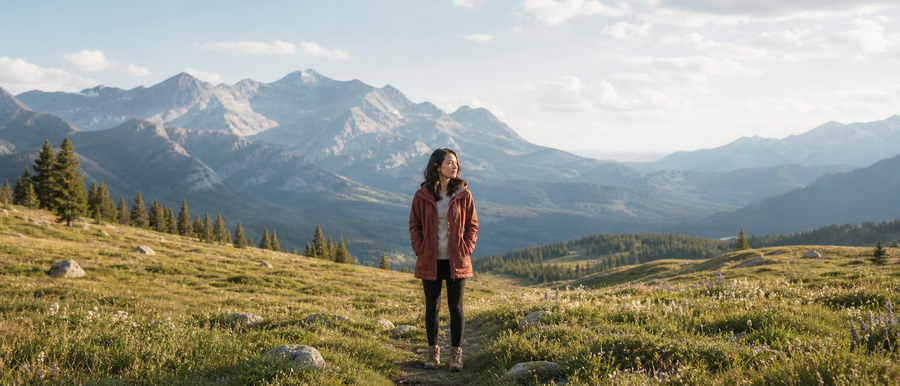
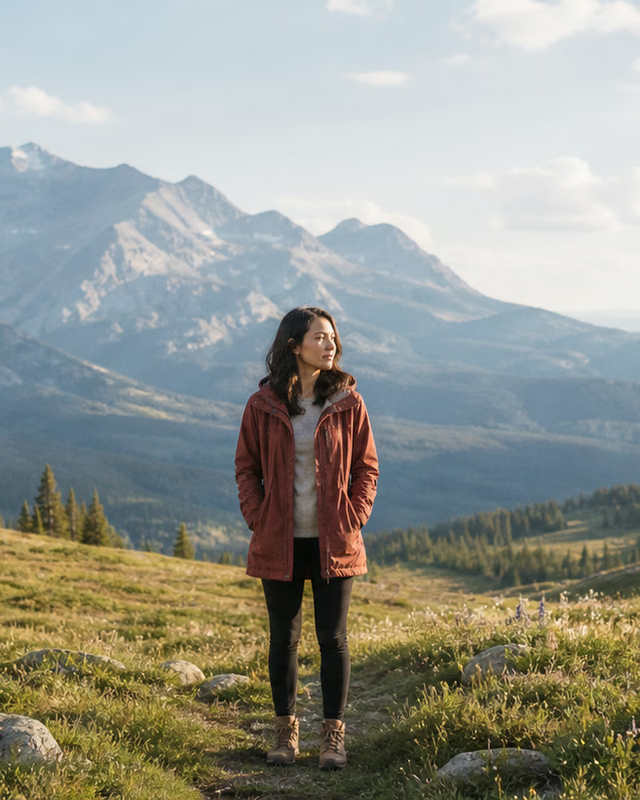
These examples illustrate the workflow. Results depend on your source image and chosen settings.
How to crop a photo to 1:1, 4:5, 16:9 or a custom aspect ratio
Choose a photo to crop
Open a JPG, PNG or WebP image up to 20 MB and 24 megapixels. Your photo stays in your browser during editing.
Select a ratio and position the frame
Choose 1:1 for a square, 4:5 or 9:16 for portrait layouts, 16:9 for landscape, or enter a custom ratio. Adjust the horizontal and vertical positions to place your subject.
Check the crop preview and download
Review the selected area, process the image and save the cropped result. Cropping removes the content outside the frame, so keep the original if you may need it later.
Crop square product images, portrait posts and wide cover photos
A consistent crop helps product grids and social layouts feel more organized. Keep faces and products away from the edges and check each platform’s current upload requirements. Cropping only removes pixels; use the AI image expander when the subject is already too tightly framed and you need to add background.
Questions about cropping photos online
How do I crop an image for Instagram or a portrait post?
Choose a suitable portrait ratio such as 4:5 or 9:16, then move the frame to keep your subject visible. The available ratios are composition presets; check the destination’s current requirements before publishing.
Can I move the crop without changing the aspect ratio?
Yes. After selecting a ratio, use the horizontal and vertical position controls to move the crop within the source image. A direction has no visible effect when the crop already fills that dimension.
What is the difference between cropping and expanding an image?
Cropping removes outer parts of the existing image. AI expansion generates new content beyond its original edges, which helps when you need a wider background without cutting off the subject. The AI editor requires an account and credits.
More image tools
Image resizer
Set the width and height you need for a product listing, blog image or social post. Keep the original aspect ratio to avoid stretching your photo, then export a resized image directly from your browser.
Open tool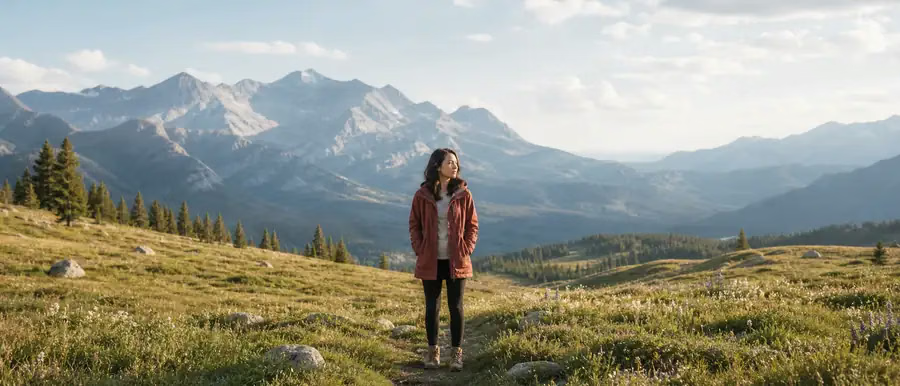
Image compressor
Make photos easier to share and quicker to load on a website. Choose JPG or WebP output, adjust quality and optionally reduce the width. Compare the actual file size before saving the compressed result.
Open tool
Image converter
Switch image formats for a website, product page or application that needs a particular file type. Choose PNG, JPG or WebP, preview the conversion and download the result without uploading your photo.
Open tool
AI background remover
AI · Uses account creditsUse AI to remove a photo background and download a transparent PNG. Sign in and check the credit cost before processing.
Open tool
Signature background remover
AI · Uses account creditsRemove the paper background from a signature photo or scan and inspect the strokes before downloading a transparent PNG. Uses account credits.
Open toolNeed more background instead of a tighter crop?
AI image expansion adds new content outside the original frame. Open the editor for product backgrounds, wider photos and new aspect ratios. AI generation requires an account and credits.
Open AI image expander