 Expand Picture
Resize images online to exact pixel dimensions
Set the width and height you need for a product listing, blog image or social post. Keep the original aspect ratio to avoid stretching your photo, then export a resized image directly from your browser.
Drop your image here, or choose a file
JPG, PNG or WebP · up to 20 MB and 24 megapixels
Your image stays in your browser. No upload or account needed.
Animated images are exported as one still frame. Metadata is not preserved.
Resize images online while keeping their proportions
Adjust the image size for your page or layout while keeping the original aspect ratio.
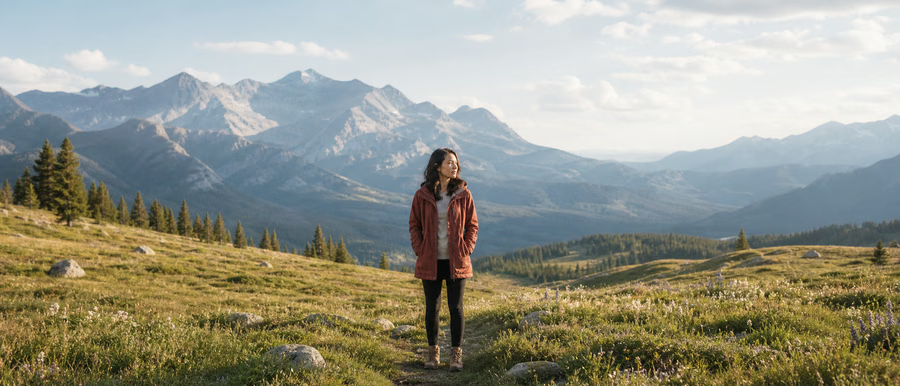
These examples illustrate the workflow. Results depend on your source image and chosen settings.
How to resize a JPG, PNG or WebP image without stretching it
Choose your photo
Open one JPG, PNG or WebP image up to 20 MB and 24 megapixels. The file stays on your device while you edit.
Set the width and height in pixels
Enter a target width or height and keep the aspect ratio locked to preserve the subject’s proportions. Unlock it only when you need both dimensions to change independently.
Preview and download the resized image
Process the image, check the output dimensions and save the result. The output can be up to 8192 pixels on either side and 24 megapixels in total.
Resize product photos and website images to fit your layout
Use exact pixel dimensions for consistent product grids, email images and blog layouts. Smaller dimensions can also reduce file size. Resizing changes the whole image; choose the cropper when you want to remove edges, or the AI expander when you need more background.
Questions about resizing images online
How do I resize an image without changing its aspect ratio?
Keep “Keep aspect ratio” enabled, then change the width or height. The other dimension updates proportionally, so faces, products and other subjects keep their original shape.
Does making an image larger improve its quality?
Increasing pixel dimensions does not restore detail missing from the source. For the sharpest result, start with a clear original and avoid enlarging it more than necessary.
Can I resize photos without uploading them to a server?
Yes. This tool processes the selected image in your browser. No account, upload or AI credits are needed. Export creates a still image and does not preserve the original metadata.
More image tools
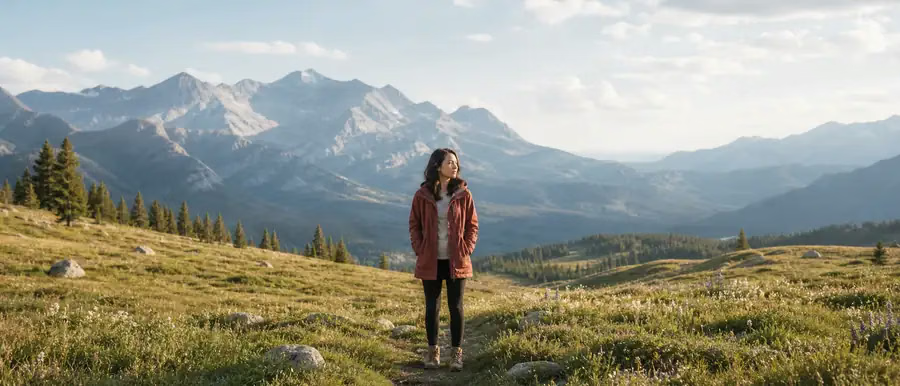
Image compressor
Make photos easier to share and quicker to load on a website. Choose JPG or WebP output, adjust quality and optionally reduce the width. Compare the actual file size before saving the compressed result.
Open tool
Image converter
Switch image formats for a website, product page or application that needs a particular file type. Choose PNG, JPG or WebP, preview the conversion and download the result without uploading your photo.
Open tool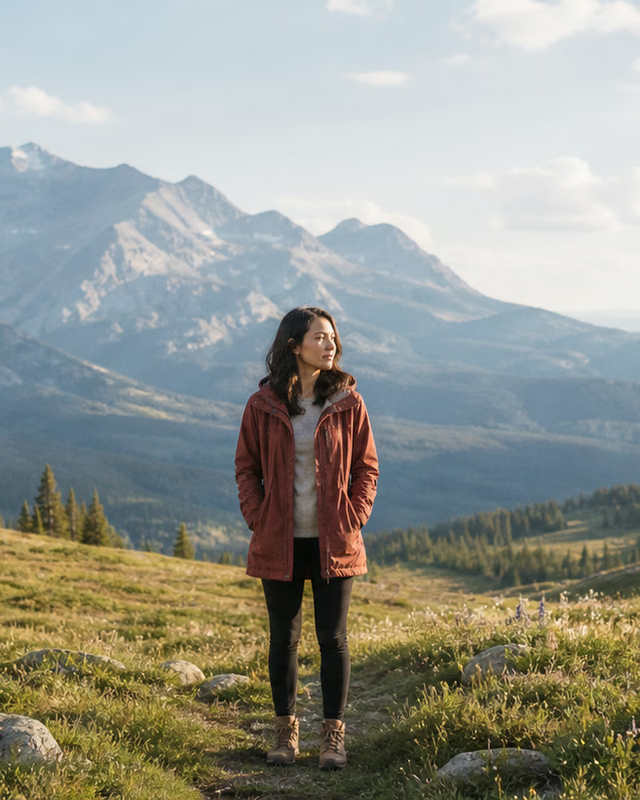
Image cropper
Keep the part of your photo that matters. Choose a square, portrait, landscape or custom aspect ratio, move the crop horizontally and vertically, then preview the exact area you will download.
Open tool
AI background remover
AI · Uses account creditsUse AI to remove a photo background and download a transparent PNG. Sign in and check the credit cost before processing.
Open tool
Signature background remover
AI · Uses account creditsRemove the paper background from a signature photo or scan and inspect the strokes before downloading a transparent PNG. Uses account credits.
Open toolNeed more background instead of a tighter crop?
AI image expansion adds new content outside the original frame. Open the editor for product backgrounds, wider photos and new aspect ratios. AI generation requires an account and credits.
Open AI image expander