How to Uncrop a Photo Without Changing the Face
 Expand Picture Team
Learn how to uncrop a photo without changing the face by preserving the original portrait, generating only outside the frame, and checking identity details.
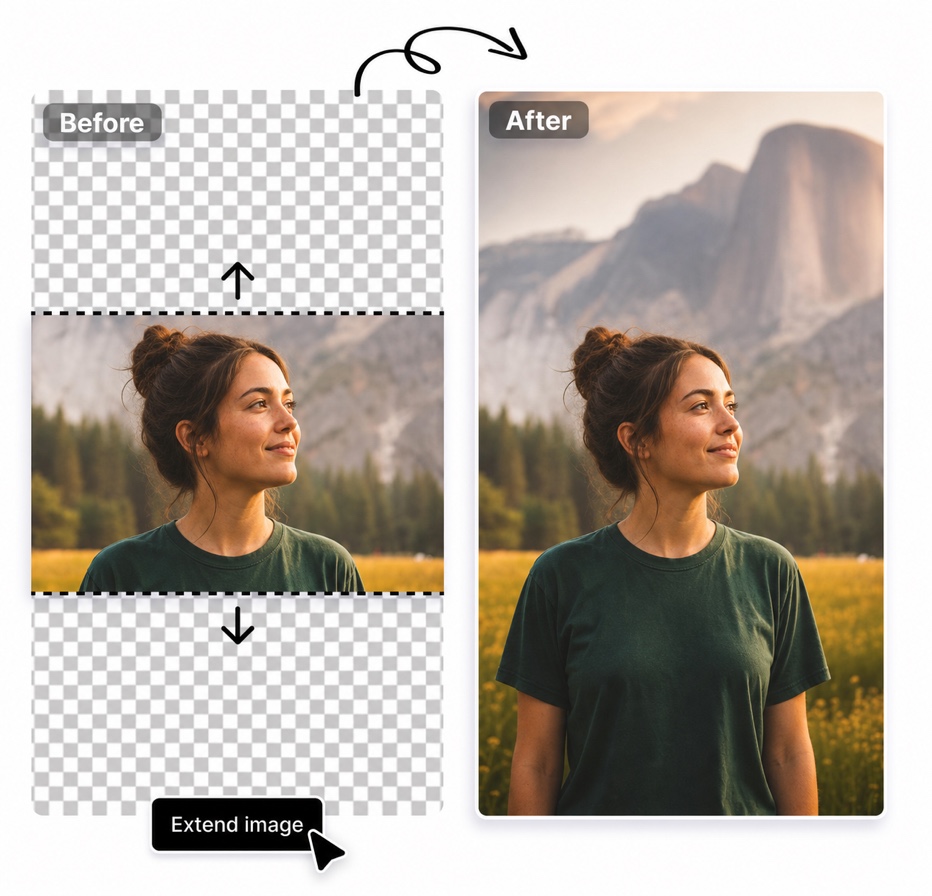
Portraits are unusually sensitive to AI editing. A background can change slightly and still look believable, but a small difference in the eyes, mouth, jawline, hairline, or expression can make a familiar person look wrong. That is why a request to “make this portrait wider” often produces a disappointing result when the tool regenerates the whole image instead of extending only the missing canvas.
The key to learning how to uncrop a photo without changing the face is to separate preservation from generation. The original portrait should remain untouched. AI should create pixels only beyond its existing borders, where new background, clothing continuation, or environmental detail is required. This process is called outpainting or image expansion.
How to uncrop a photo without changing the face
Choose a tool and workflow that expands the canvas around the source instead of re-rendering the full portrait. The preview should show the original image positioned inside a larger frame, with the newly created area outside it.
- Find the best version of the portrait. Use the original camera file or highest-resolution export, not a screenshot or compressed messaging-app copy.
- Upload the image without applying face filters. Retouching, face enhancement, and image generation are separate tasks. Turn them off when identity preservation is the priority.
- Choose the new aspect ratio. Use 4:5 for a taller composition, 1:1 for a square frame, or 16:9 when you need a widescreen image.
- Select a portrait preset. It should tell the outpainting model to preserve identity, pose, proportions, lighting, and depth of field.
- Keep the instruction focused on the new area. For example: “continue the softly blurred park background and the existing jacket below the frame.”
- Generate the extension and compare it with the source. Do not rely on memory. Open the original beside the result and inspect the face at the same zoom level.
- Download only after an identity check. If the original face changed, reject the result even when the background looks good.
Expand Picture is built to request that the original pixels remain unchanged while it generates only the added canvas. The preview lets you inspect the full result before export.
Uncrop a photo without changing facial features or expression
“The face looks almost the same” is not a useful quality standard for a personal portrait, professional headshot, memorial image, or family photo. Check stable identity details one by one: the spacing and shape of the eyes, eyebrow angle, nose outline, lip shape, smile asymmetry, jawline, moles, freckles, facial hair, glasses, earrings, and hairline.
Expression matters as much as anatomy. A slightly different mouth shape can turn a neutral expression into a smile. A small change around the eyes can alter the mood. If the output replaces the original face rather than preserving it, no prompt can guarantee perfect identity. The correct fix is to use a canvas-expansion workflow that keeps the source portrait in place.
Why AI uncropping sometimes changes a person's face
The phrase “AI photo editor” covers several different operations. A text-to-image generator reconstructs an entire image based on a prompt. An image-to-image editor may use the source as guidance but still redraw large parts of it. An outpainting tool is narrower: it extends beyond existing borders and should leave the center intact.
Faces change when a workflow uses too much generative freedom. This can happen when the tool automatically reframes the whole picture, when a prompt asks it to improve the person, or when the face overlaps an area selected for regeneration. Low-resolution inputs also give the model less precise information, making subtle details easier to lose.
The safest rule is simple: if you do not want the face changed, do not ask AI to regenerate the face. Keep the entire face, hairline, ears, and other identity-defining details inside the protected original area.
Choose a portrait that can be safely uncropped
Good source selection prevents many failures. The easiest portraits to uncrop have a complete face with some space around the head. The background continues to at least two edges, and important anatomy does not end exactly on the border.
A portrait is harder to extend when the crop passes through the top of the head, cuts an ear, removes part of a hand, or ends across patterned clothing. The model must invent whatever lies beyond that border. It may create a plausible continuation, but plausible is not the same as historically or personally accurate.
For irreplaceable photos, look for another scan, a wider frame from the same photo session, or a second reference image before generating missing anatomy. Use AI outpainting primarily to recover composition and background space, not to claim a factual reconstruction of details that were never captured.
Prompts to uncrop portraits while preserving identity
Useful prompts describe the surrounding scene and explicitly limit the edit:
- “Keep the original person unchanged. Extend only the softly blurred garden background.”
- “Preserve the face, expression, pose, and lighting. Continue the studio backdrop on both sides.”
- “Generate only below the existing frame, continuing the jacket and neutral wall naturally.”
- “Extend the beach and sunset sky without adding another person or changing the subject.”
Avoid prompts such as “improve the face,” “make the person more attractive,” “restore every facial detail,” or “turn this into a cinematic portrait.” Those instructions invite changes to the exact features you are trying to preserve.
Face-preservation checklist after AI uncropping
Use a side-by-side comparison with the original and generated files aligned at the same scale. Check the original region first, then the new edges.
- Eyes: Shape, color, spacing, catchlights, eyelids, and gaze direction match.
- Brows and forehead: Eyebrow thickness, arch, and visible forehead lines remain the same.
- Nose and mouth: Nose contour, lip shape, teeth, smile, and expression do not drift.
- Face shape: Cheeks, chin, jawline, ears, and facial proportions are unchanged.
- Distinctive details: Freckles, moles, scars, facial hair, makeup, and glasses are preserved.
- Hair: The original hairline remains intact; generated hair at the edge follows the same color, curl, and light.
- Skin tone and light: No sudden smoothing, sharpening, color shift, or new highlight appears over the original face.
- Pose: Head angle, shoulder line, and gaze stay consistent.
If any feature inside the original region moves, changes shape, or disappears, the result does not meet the requirement. Regenerate with a stricter preservation workflow or switch tools. Do not try to explain away a changed identity as a harmless AI variation.
How to handle hair, hands, and clothing at the crop boundary
The face may be fully protected while other human details cross the edge. Hair is difficult because individual strands, curls, and highlights must continue naturally. Hands are even less forgiving because extra or fused fingers are immediately noticeable. Clothing can introduce broken seams, duplicate buttons, and impossible folds.
When these details touch the border, expand in stages rather than asking for a very large canvas at once. Review the first continuation, then use the approved result only if another extension is necessary. A short prompt can name the material or garment, but it should not invent a different outfit.
If the missing detail has factual importance, such as a uniform badge, cultural garment, wedding accessory, or historical object, do not let AI guess. Limit the expansion to background space or use a verified reference and manual editing process.
Match the uncropped portrait to its intended use
Choose the final ratio before generating. A 4:5 portrait can add headroom and space below the shoulders for a profile or editorial layout. A square frame may need balanced space around the face for an avatar or gallery. A 16:9 version can turn the portrait into a banner with negative space for a headline.
Leave text out of the generated image. Create clean negative space, then add names, dates, titles, or campaign copy in a design tool. Real text stays editable, searchable, and accessible, and it avoids the malformed lettering generative models may create.
For important portraits, export two files: a clean master with no text and a placement-specific version. Keep the original alongside both. This makes it easy to verify provenance and create another format later without repeatedly editing an already generated image.
Common mistakes when uncropping a face with AI
Using a full-image restyle. Style transfer or “enhance” modes may redraw skin and facial features even when the output looks realistic.
Prompting for beauty changes. Requests to improve appearance conflict directly with identity preservation.
Starting from a tiny image. A low-resolution source makes fine identity details harder to preserve and review.
Ignoring the original after generation. Familiarity is not enough. Always compare both files at equal size.
Assuming generated anatomy is factual. Outpainting can create a plausible shoulder, hand, hairstyle, or garment continuation, but it cannot know what the camera never recorded.
FAQ about how to uncrop a photo without changing the face
Can AI extend a portrait without editing the original face?
Yes, when the workflow preserves the original image and generates only outside its borders. Verify this in the result rather than relying only on a tool's description.
What if the top of the head is already cropped?
AI can generate a plausible continuation of hair and head shape, but that area is inferred. It should not be presented as an exact reconstruction. If accuracy matters, look for a wider source or reference photo.
Which aspect ratio is best for uncropping a portrait?
Use the ratio required by the final placement. Choose 4:5 for a taller portrait, 1:1 for a balanced square, or 16:9 for a landscape banner. The safest option is the smallest expansion that solves the composition problem.
Uncrop your portrait while preserving the original face
Identity preservation begins with a narrow edit: keep the real portrait, generate only the missing surroundings, and verify every defining detail against the source. AI should provide more canvas, not a different person.
Open the Expand Picture editor
, select the portrait preset and the aspect ratio you need, then review the expanded result beside the original before downloading.